
Computer Use in DCode: an agent that can use your desktop apps
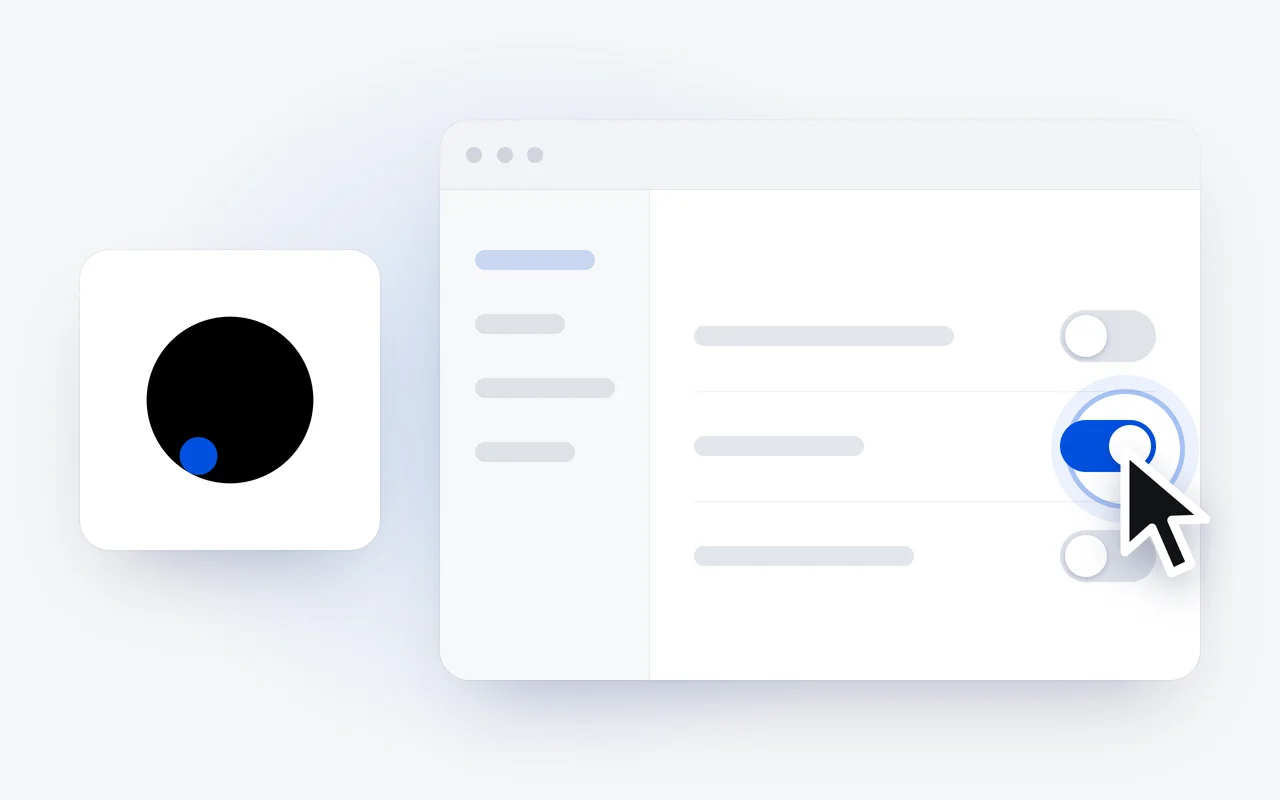
Computer Use lets DCode, the agentic coding environment by Dipole ML Inc., see your screen and work the apps on it: it clicks, types and reads what is really there. It runs in the desktop app on Windows and macOS, on by default since DCode 2.0.1, and on a Mac it needs two permissions.
Key facts
- With Computer Use, DCode sees your screen and works the apps on it: it clicks, types and reads what is really there.
- It has been part of DCode on Windows since DCode 1.0, and on by default since DCode 2.0.1, in the desktop app on Windows and macOS.
- On a Mac it needs two permissions in System Settings: Accessibility, to click and type, and Screen Recording, to see the screen.
- Whether it asks first follows your permission mode; the card offers Allow, Always allow Computer Use in this project, or Deny.
- It is not available on Linux desktops or in remote workspaces such as SSH, WSL or Docker.
Some tasks leave the terminal. A settings window has to be clicked through to see whether a change took, a desktop tool has no API or command line, an internal dashboard only exists on screen. With Computer Use, DCode sees your screen and works the apps on it: it clicks, types and reads what is really there.
What is Computer Use for?
- Testing a change to an app by using the app, not only by reading its code.
- Tools with no API or command line: internal dashboards, desktop software, older systems.
- Repetitive work in an app that you would rather describe once than click through again.
When a task does not need the screen, plain work in the project is faster. For web pages, DCode has its own built-in browser.
How does a Computer Use step work?
You describe the task in the chat in plain words, for example "open the settings window of the app and check that the dark theme applies". DCode then works through it as you would: it looks at the screen, clicks and types, and reads what the app shows back.
Describe
You describe the task in the chat, for example checking a settings window.
Ask
If your permission mode asks first, DCode shows a card: Allow, Always allow Computer Use in this project, or Deny.
See
DCode sees what is on the screen. On a Mac, Screen Recording lets it.
Act and read
It clicks and types in the app and reads what is really there. On a Mac, Accessibility lets it.
Where does Computer Use work?
In the DCode desktop app. Computer Use has been part of DCode on Windows since DCode 1.0 on October 1, and since DCode 2.0.1 on October 29 it is on by default, ready on a fresh install, on Windows and on macOS.
| Where | Computer Use |
|---|---|
| Windows, x64 and ARM64 | Yes, in the desktop app |
| Mac with Apple silicon or Intel, macOS 13 or later | Yes, in the desktop app, with two permissions |
| Linux desktops | Not available |
| Remote workspaces over SSH, WSL, Docker and the like | Not available |
How do I give DCode the two macOS permissions?
On a Mac, Computer Use needs two permissions in System Settings:
- Accessibility, so DCode can click and type in apps for you.
- Screen Recording, so DCode can see what is on screen.
Since DCode 2.0.3, the first-run tour asks for both, and you can give them later. If a task needs them before you have:
- DCode asks Computer Use needs macOS permissions. Choose Authorize.
- Follow the guide, and allow DCode under Accessibility and under Screen Recording in System Settings.
- If both are given and Computer Use still does not work, choose Restart Helper, then Restart DCode.
Does DCode ask before it uses my screen?
That follows the permission mode you choose for the session, the same choice that decides how much DCode does on its own. When it asks, the card offers three answers:
- Allow: go ahead this time.
- Always allow Computer Use in this project: do not ask again for Computer Use in this project.
- Deny: DCode does not do it.
Watch what DCode does, and stop the task when you would not take a step yourself. Passwords, banking and anything you would not hand to a colleague are better done by hand.
How do I turn Computer Use off, or back on?
Open Settings, Computer Use. Enable Computer Use turns it on or off, with its tools and skills. Show Computer Use button in the composer puts a Computer Use button beside the message box; it is off at first.
Can a crew use the screen?
Yes, one agent at a time. When a crew of agents works on a task, an agent that needs the screen waits its turn, and its card in the Crew dock says Waiting for the screen until then.
What happens to what DCode sees?
What DCode sees on the screen becomes part of your conversation, and it is handled like the rest of your content, under our Privacy Policy.
Computer Use comes with DCode, a free download for Windows and macOS on the download page. The full guide is in the Computer Use docs, and what else DCode does is on the DCode page.
Questions and answers
Does DCode Computer Use work on Linux?
Not on a Linux desktop. Computer Use runs in the DCode desktop app on Windows and macOS, and not in remote workspaces such as SSH, WSL or Docker. Use a local Windows or macOS workspace for it.
Which macOS permissions does DCode need for Computer Use?
Two, in System Settings: Accessibility, so DCode can click and type in apps for you, and Screen Recording, so it can see what is on screen. The first-run tour asks for both, and DCode asks again if a task needs them.
Is Computer Use on when I install DCode?
Yes. Since DCode 2.0.1 it is on by default, ready on a fresh install. To check or change it, open Settings, Computer Use, and use Enable Computer Use.
First published Last updated