
DCode 2.5: crews that run at once, Auto mode and pull requests
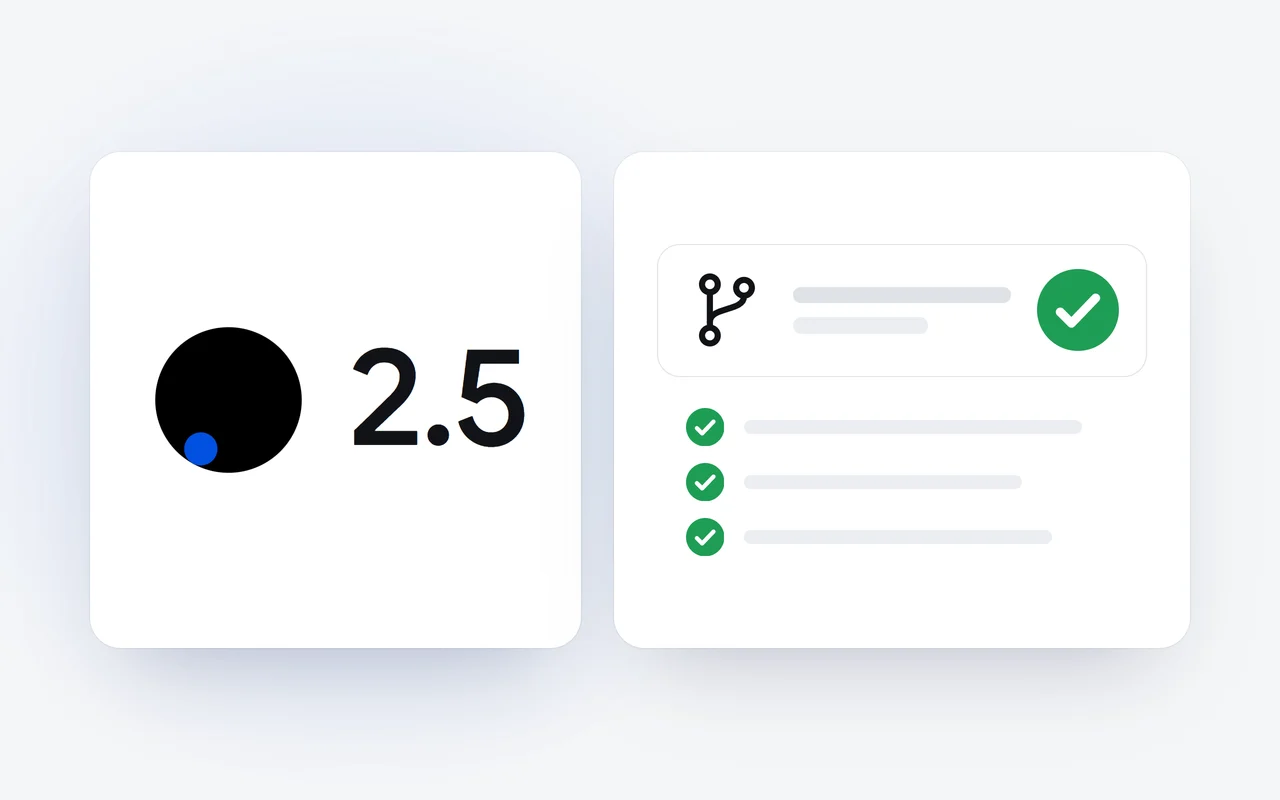
On November 10, 2026 we released DCode 2.5, for the desktop app and the CLI. A crew now starts all of its parts together when your computer has the memory for it, Auto mode runs safe steps on its own and asks before risky ones, and the desktop app opens pull requests and hands failing checks back to the agent.
Key facts
- DCode 2.5 shipped on November 10, 2026, for the desktop app and the CLI.
- A crew now starts all of its parts together when your computer has the memory for it.
- Auto mode runs safe steps on its own and asks first before risky ones, and Autonomous mode is now called Fewer questions.
- From the desktop app, DCode creates a pull request, follows its checks and, with Fix failing checks, hands the failures back to the agent.
- One Agents view shows every task and helper running now, and you can sign in with your email address besides Google and Apple.
DCode 2.5 is out for the DCode desktop app and the CLI. It follows DCode 2.0 of October 29 with four headline changes: crews that start every part at once, a new Auto mode, pull requests from the desktop app, and one view of every agent at work. The installers are on the download page.
What is new in DCode 2.5?
- Crews that run at once. A crew starts all of its parts together when your computer has the memory for it.
- Auto mode. Safe steps run on their own and risky ones ask first, in the desktop app and the CLI.
- Pull requests from the desktop. Run a task in its own worktree, create a pull request, follow its checks and hand failing checks back to the agent.
- One Agents view for every task and helper running now, with a Stop button for each.
- Sign in with email, besides Google and Apple.
- A much bigger CLI, with new options for scripts and CI, and
dcode schedule.
How does a crew run its parts at once?
Since DCode 2.0.1, DCode can hand the independent parts of a large task to a crew of up to 24 agents; our story on crews explains how a task is split and what the Crew dock shows. In 2.5, a crew starts all of its parts together when your computer has the memory for it.
How many agents run at the same time follows your computer. In Settings, General, Agents at once sets the most a crew runs together: on Auto (up to 24), DCode decides from your computer's free memory, or you choose a number. When memory is low or the computer is busy, DCode runs fewer at once, queues the rest, and the Crew dock says why.
What does Auto mode do?
The permission mode decides which steps DCode takes on its own and which wait for your yes. Auto starts from Ask before changes. When that mode would ask, Auto first checks the step against your latest request, and lets it run on its own only when it clearly helps with your request, only reads or only changes files inside the project, is easy to undo and sends nothing off your computer.
Some steps always come to you in Auto, whatever the check says: pushes, force pushes and history rewrites; recursive deletes and deletes outside the project; installing software for the whole computer; network requests to any address other than your own computer; publishing, deploying and opening a pull request; credentials, keys and .env files. If the check is unsure, you get the question Ask before changes would have asked. Auto never refuses a step by itself: the most it does is ask.
The mode that was called Autonomous mode is now called Fewer questions: DCode changes files and runs commands on its own and stops only before a dangerous command. The five modes, as they stand in 2.5:
| Mode | What runs on its own | What waits for your yes |
|---|---|---|
| Ask before changes | Reading and searching the project. | Each file change, each command that changes something, and every other step with side effects. |
| Auto | What Ask before changes would run, plus the steps a quick safety check passes for your request. | Clearly risky steps, and whatever the check is unsure about. |
| Fewer questions | Most steps, file changes and commands included. | Dangerous commands only. |
| Full access | Every step, except the few that always ask. | Only the few steps that always ask, such as a plan for your approval. |
| Plan mode | Reading the code, and tools that cannot change anything. | Nothing is changed. When the plan is ready, DCode asks you to approve it. |
In the desktop app, choose the mode in the message box, or press Ctrl+Shift+M to move through them. In the CLI, Shift+Tab moves through the modes and /mode auto switches to Auto. The permission modes docs list every step that always asks.
How do pull requests work from the desktop app?
A task can now run in its own worktree: a separate copy of the project on a new branch, so it works without clashing with your own edits or with other tasks. On a new task, open Worktree, choose Run in its own worktree and give it a short name; the new branch is under dcode/.
Its own worktree
The task runs in its own worktree, on a new branch under dcode/.
Commit
Commit the work under Git tools. DCode can write the message.
Create pull request
DCode fills in the title and description. Push and create pushes the branch first.
Checks and fixes
Follow the checks. Fix failing checks hands the failures back to the agent.
Commit the work with Commit / Push under Git tools, where DCode can write the message for you. Then choose Create pull request. DCode reads your commits and fills in the title and description; edit them and pick the base branch. If the branch is not on GitHub yet, the button reads Push and create and pushes it first. The pull request's row then shows its number, its state and its checks, which refresh every minute while the panel is open.
When a check fails, choose Fix failing checks, then Start task. DCode opens a new task whose prompt lists the failing checks and the end of their logs, and asks the agent to find the cause, change the code and run the same checks locally where it can. Press Send to start it.
Pull requests need a GitHub remote and the GitHub CLI, gh, signed in; if either is missing, Set up pull requests shows what to run. In the CLI, ask DCode in your own words and it uses git and gh like any other command. Opening a pull request changes something on your code host, so in Auto it always waits for your yes. The git and pull requests docs have every step.
What does the Agents view show?
The Agents view puts every task and helper running now in one place, across all open projects. Each row shows its project, its task, its status, what it is doing now and how long it has run. A row is a Helper or a Crew member, and its status is Working, Starting, Queued, In the background, or Needs you when it waits for your permission or your answer.
Stop on a task stops it and its helpers, and you can continue the task later; on a helper, it stops only that helper, and the task keeps going. Open task takes you to its conversation, and a task in its own worktree shows its branch.
How do I sign in with email?
Besides Continue with Google and Continue with Apple, the desktop app now offers Continue with email, for an address that is not a Google or Apple account. You finish signing in in your browser, and DCode carries on by itself.
What is new in the CLI?
The CLI grew the most. /bg starts a helper in the background and /agents manages them; a line that starts with ! runs a shell command yourself; /usage, /status, /context, /diff, /review and /security-review are among the new commands; Ctrl+R searches your earlier prompts; and /config adds vim mode, your own keys, Ctrl+G to write a prompt in your editor and a custom status line. For scripts and CI, dcode -p has new options, DCODE_API_KEY signs in a CI job and dcode schedule runs prompts on a timetable: our story on scripting and CI with the DCode CLI walks through them with working examples.
On Windows, the CLI now updates itself, and asks first. To move to 2.5 on Windows, run npm install -g @dipoleml/dcode-cli once; after that, new versions come to you.
How do I get DCode 2.5?
DCode is a free download for Windows and macOS, on the download page; if it is already installed, the sidebar shows Update available. Your Raven plan works in it from the start, and the DCode Coding Plan, at $29 a month, adds a larger allowance for heavy coding; both are on the pricing page. Every release is in the changelog.
Questions and answers
What is Auto mode in DCode?
A permission mode in which safe steps run on their own and risky ones ask first. When Ask before changes would ask, Auto first checks the step against your request. It never refuses a step by itself: the most it does is ask. Pushes, deploys and opening a pull request always wait for your yes.
Can DCode open a pull request?
Yes, from the desktop app, in a project with a GitHub remote. DCode uses the GitHub CLI, gh, fills in the title and description from your commits and shows the pull request's checks. When one fails, Fix failing checks starts a new task with the failures.
What happened to Autonomous mode in DCode?
It is now called Fewer questions. DCode changes files and runs commands on its own and stops only before a dangerous command, such as a recursive delete or a force push.
First published Last updated